


Real talk: I spent the first few days after OpenAI’s September 23 announcement trying to run my actual workday by voice. Not demos. Not “ask it about the weather.” Real stuff — inbox triage on the commute, a pitch deck outline, a spreadsheet I’d been putting off for a week.
Here’s the thing. It worked. Well — mostly. And the parts that didn’t work taught me exactly where this technology sits right now, which is honestly more useful than a list of features.
On September 23, 2026, OpenAI opened its announcement with three words that said everything before the details even landed: “We heard you loud and clear.” Then came the news — ChatGPT Voice got three upgrades at once: plugin support for connected apps like email, calendar, and Slack; a user-selectable GPT-6 backend (Astra, Sol, or Luna); and Voice inside ChatGPT Work on web and mobile, so you can create docs, decks, sites, and spreadsheets just by talking. The update is rolling out globally in the latest version of the app, with about 1.5 million views on the announcement in its first days.
If you’ve been following the GPT-6 story, you know the models arrived fast — Sol and Luna got their GPT-6 upgrades the day before this voice release, while Astra had already been out for a few weeks. But here’s what made me pay attention: this isn’t really a “new model” story. It’s a “the assistant can finally touch your tools” story. That’s a very different thing.
And as a founder, the question I care about isn’t whether the voice sounds natural (it does). It’s: can I trust it with my inbox? What does it cost my team? Where does it break? That’s what this guide is — the setup, the model picker, the workflows that genuinely save time, the permissions conversation you need to have before rolling it out, and the honest limits. No hype, no filler.
What Actually Changed (and Why It Matters)
Three things, all at once. Let me take them one by one, because each one changes how you’d use this as a founder.
1. Plugins inside Voice
Voice can now use the plugins and connected apps your account already has — OpenAI names email, calendar, and Slack as the examples. In plain terms: you can ask “what does tomorrow look like?” or “has that investor replied yet?” without stopping to type. Written responses still appear in the chat alongside the conversation, so you can read what it found while you keep talking. Your existing app connections, permissions, and usage limits carry over unchanged — Voice doesn’t create a new authorization layer.
Connected plugins can also support actions, not just lookups. Send an email, search permitted Slack conversations, check financial accounts for duplicate charges — what it can actually do depends on the service, your account permissions, and the access you’ve granted. OpenAI says plugins can be packaged into reusable workflows, which is where this gets interesting for teams.
2. A GPT-6 backend you pick yourself
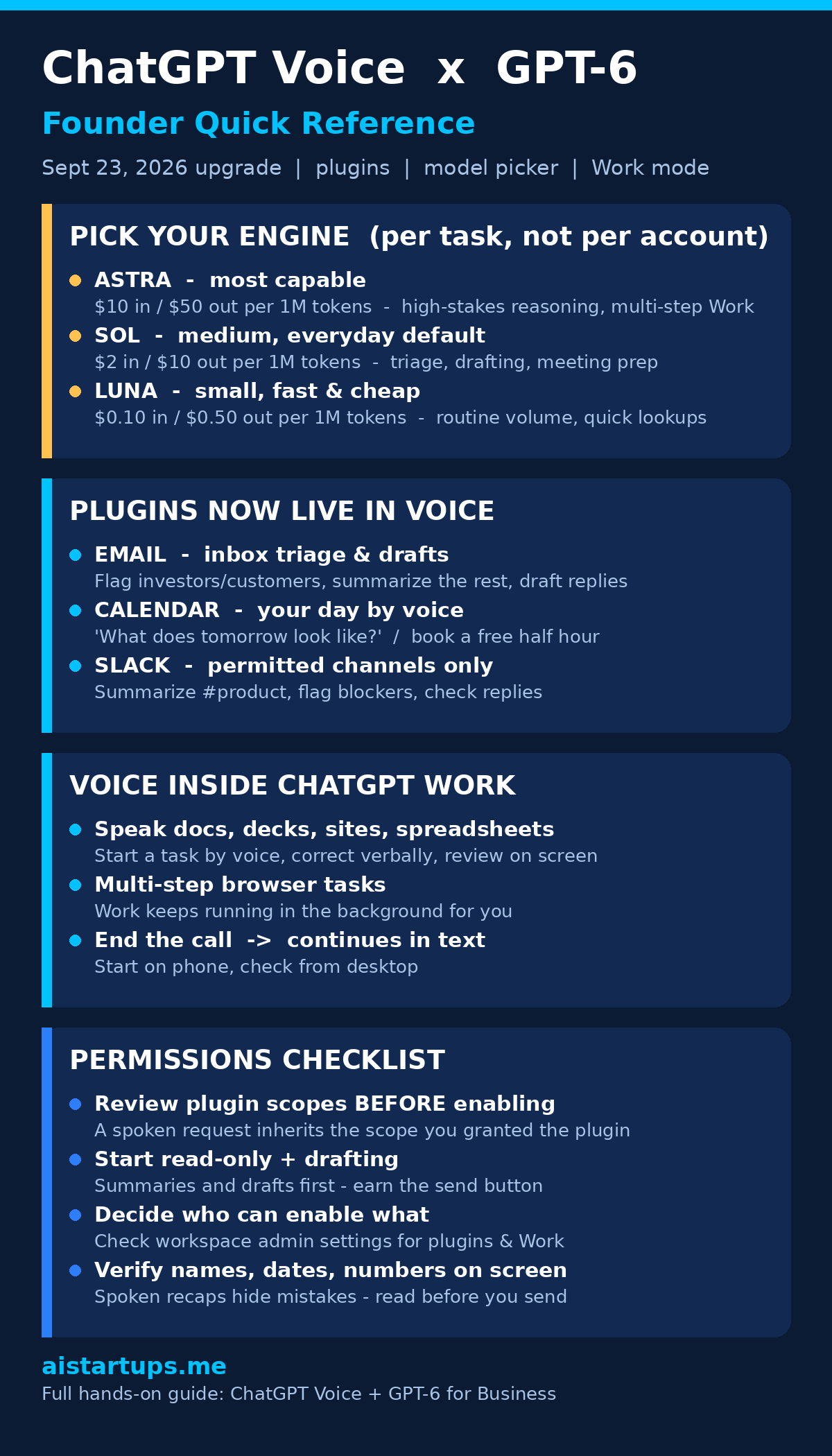
You now choose which model powers your voice session: Astra (most capable), Sol (medium), or Luna (small) — subject to your plan and workspace settings. I’ll get into the per-task math below, but the short version is that this turns model choice into a routing decision your team owns. Expensive brain for hard problems, cheap brain for routine ones.
3. Voice inside ChatGPT Work — the big one
This is the shift that matters. ChatGPT Work is OpenAI’s cloud-connected agent workspace — it reads data from your connected apps and runs multi-step workflows in the background. Now you can use Voice inside Work on web and mobile: speak a task, get a finished artifact. Documents, presentations, websites, spreadsheets, or browser-based jobs, just by talking.
One detail makes it practical instead of a demo: if you end the voice call before the task is done, it carries on in text. You’re not tied to the conversation until the work finishes. Start on your phone, check from your desktop — that’s the whole pitch.
Voice stopped being a conversation surface and became a control surface. You’re not talking to the model anymore — you’re talking through it to get things made. That single change is why this release matters more than any model upgrade this year.
Get Set Up in 10 Minutes
Before you try any of the workflows below, get the basics right. Most of the “it doesn’t work” complaints I’ve seen trace back to one of these steps.
- Update the app first. The rollout is “global in the latest version” — web, iOS, and Android — but it’s staged by surface. Some users see Work chat on mobile but not Voice in Work yet. If something’s missing, update, restart, and check again before assuming you don’t have access.
- Connect your apps in Settings first. Voice uses whatever connected apps your account already has — email, calendar, Slack. Do this in text mode, calmly, where you can read the permission screens. Your existing connections, permissions, and usage limits carry over unchanged.
- Know what your plan gets you. Plus and Pro users can use Voice in ChatGPT Work on mobile to create docs, decks, and spreadsheets, work with connected plugins, draft emails, and build sites. Free and Go users get plugins and connected apps inside the chatbot itself. Don’t assume — check.
- Find the right voice surface. On mobile, open the ChatGPT app and tap the Voice icon in the message bar for a spoken chat. For a tool-assisted session, open Work first, then use its Voice control — that’s the one that can create documents, presentations, and spreadsheets or work in a browser. On web, the voice control sits in the message bar.
- Check workspace admin settings. Some model and Work features are gated by plan and workspace settings. If you’re the admin, review who can enable plugins and Work before you announce anything to the team.
One more tip from experience: in Settings → Voice, you can enable Background conversations to keep a session going while you use other apps or the phone is locked. Turn this on. Half the value of voice work is that it happens while you’re doing something else — driving, walking, waiting for coffee. (The Deep View’s breakdown of the release is worth a skim for the plan-tier details.)
Astra vs Sol vs Luna: Pick the Right Engine
This is the part most founders will get wrong at first, because the instinct is to always pick the smartest model. Don’t. Pick per task. OpenAI’s own positioning is clear: Astra is the most capable, Sol is the middle, Luna is the small one. Here’s how I’d actually route work:
Luna — the fast, cheap one. High-volume routine work: dictation, quick lookups, “summarize this thread,” simple triage. At $0.10 input / $0.50 output per million tokens via API, it’s the model you use when you’d otherwise hand the job to an intern. Free and Go users even get Luna in the desktop app, which tells you how OpenAI positions it.
Sol — the everyday workhorse. This is your default. Inbox triage with judgment calls, drafting emails and docs, meeting prep, most Work sessions. At $2 input / $10 output per million tokens, it’s roughly 50% cheaper than GPT-5.6 rates, and cached input reads get a 90% discount. For most founder tasks, Sol is the sweet spot of capability and cost.
Astra — the heavy brain. Reasoning-heavy spoken work: complex multi-step Work tasks, negotiation prep, strategy docs, anything where a wrong answer costs real money. At $10 input / $50 output per million tokens, you don’t use it for everything — you escalate to it deliberately.
My rule of thumb after a few days: default to Sol, escalate to Astra when the stakes are high, drop to Luna when the task is routine. The nice thing is the picker is right there in the session, so switching is a tap, not a migration. I did a full pricing breakdown of Claude Opus 5.5 vs GPT-6 Sol and Luna a while back — worth a read if you want the complete cost picture before you set a team default.
5 Business Workflows That Actually Work by Voice
Theory is nice. Here’s what I actually ran, what I said, and what came out the other side.
1. Morning inbox triage (the commute special)
This is the single best use case right now, and it’s not close. Say something like: “Check my email from overnight. Flag anything from investors or customers, summarize everything else in two sentences each, and draft replies for the ones that just need a yes or no.”
What you get back is a spoken summary plus written results in the chat — drafts you can read, edit, and send. The key discipline: keep it on drafting for a while. Voice removes the small pause that normally stops you from sending something half-formed. Let it earn your trust on read-and-draft before you hand it the send button. One reviewer of this update put it well: start with read-only requests, keep it on drafting, and let it earn the send button.
2. Docs, decks, and spreadsheets by voice
The Work mode workflow looks like this: “Start a new deck about Q3 results using last month’s spreadsheet.” Voice hands the task to Work, which pulls your connected files. Then you correct verbally — “make slide three simpler” — and review the file on screen.
For documents, be specific about structure, because spoken requests tend to ramble (mine do). Try: “Create a draft outline, not a final document. Sections: objective, decisions needed, timeline, open questions. For each factual bullet, note the source. Put anything you’re unsure about in a separate ‘needs verification’ section.”
For spreadsheets, ask for reviewable structure: “Build a draft with separate tabs for raw data, calculations, and assumptions. Don’t estimate missing values — mark them unknown.” If the sheet will later drive payments, hiring, or compliance, a human verifies every formula before it touches a decision. Non-negotiable.
And if you’re thinking bigger — voice-driven workflows as a product feature, not just an internal habit — that’s a different kind of build. AI integration studios like AISquadX do exactly this kind of custom work for startups: wiring voice and agentic workflows into your own apps, data, and customer-facing tools instead of living inside someone else’s chatbot.
3. Meeting prep in the car
“Pull my calendar for tomorrow. For the 10 AM with the supplier, summarize our last email thread and give me three sharp questions to ask.” This is where the plugin combo earns its keep — calendar plus email in one spoken request. I did this before a vendor call and walked in better prepared than the person on the other side. Small thing, real edge.
4. Travel and expense follow-ups
“Find the booking confirmations in my email for next week’s trip and build a spreadsheet: flight, hotel, costs, confirmation numbers.” Then: “Draft the out-of-office reply and schedule it.” Boring work, perfect for voice, because none of it needs your full attention — just your sign-off at the end. Review the written output before anything gets sent or booked. Names, dates, confirmation numbers: check them on screen, not by ear.
5. The Slack standup
“Summarize what happened in #product yesterday and flag anything blocked.” For a founder managing a small team across time zones, this replaces scrolling through a channel at midnight. Caveat: it only sees permitted Slack conversations — which is exactly as it should be. If you want it to see more, that’s a scope decision you make deliberately in the plugin settings, not an accident.
Before You Hand It to Your Team: The Permissions Talk
This is the section I’d make required reading. A spoken request can now reach email, calendar, and permitted Slack conversations — so the scope you grant a plugin is the scope a voice instruction inherits. That’s the whole security story in one sentence.
Voice does not create a new authorization layer. Existing app connections, provider permissions, workspace policies, approval requirements, and usage limits continue to govern what can happen. In practice, that means your job as the admin is mostly about what you allow before anyone starts talking:
- Review plugin scopes before enabling, not after. Connecting an app doesn’t open the whole account by default — but read the permission screen like a contract, because functionally it is one.
- Decide who can enable what. Check workspace settings for plugin and Work access. The question isn’t just what the tool can do, it’s which team members can switch things on.
- Start teams on read-only and drafting. Summaries and drafts first. Sending, booking, and publishing come later, per person, once the quality is proven.
- Keep sensitive surfaces separate. If your finance or HR conversations live in Slack channels the plugin can see, think about whether that’s a scope you want a voice assistant holding.
None of this is a reason not to use it. It’s the reason to set it up properly once instead of cleaning up later. The unglamorous admin work is what decides whether a voice rollout survives contact with a real team.
What It Costs a Team (the Honest Math)
Let’s talk money, because “AI is cheap now” is only true if you route wisely. The headline numbers from the GPT-6 launch: Sol runs $2 input / $10 output per million tokens, Luna is $0.10 / $0.50, Astra is $10 / $50 — roughly 50% cheaper than GPT-5.6 rates, with a 90% discount on cached input reads (full pricing details here).
For the ChatGPT product itself, your cost is your plan tier — but the model picker is where teams quietly save or waste money. A founder who defaults everything to Astra is paying up to 100x Luna’s input price for tasks Luna could handle. Run the routing discipline from the section above: Sol as default, Astra for high-stakes reasoning, Luna for routine volume. On cached, repeated workflows (the same standup summary every morning, the same triage prompt), that 90% cached-read discount compounds fast.
I’ll be honest: for most early-stage teams, the plan subscription will dwarf usage costs anyway. The real cost risk isn’t the model bill — it’s the hour your ops person spends fixing a spreadsheet the voice session confidently built wrong. Which brings us to the limits.
If you’re budgeting AI spend more broadly, I broke down what it actually costs to start an AI business in 2026 — voice tooling is one line item in a bigger picture worth planning.
Honest Limits: What It Can’t Do Yet
I promised no hype. So here’s where it falls short, from my own testing and the first wave of user reports:
Rollout gaps are real. “I don’t see it in Work yet” was one of the first user replies to the announcement. Features are plan-gated and workspace-gated, and the rollout is staged by surface — one user could see Work chat and scheduled tasks on mobile but not Voice in Work. If you’re missing something: update the app, restart, check workspace admin settings, confirm your plan includes the model you expect. Don’t assume it’s broken; assume it’s staged.
It’s not unsupervised phone control. This release is about the ChatGPT product surface — the app and Work — not full device control. You can trigger Work-style workflows by voice, but don’t expect it to drive your whole phone.
No live video with voice yet. Users asked for it immediately (“bring back live video with voice chat”), and OpenAI didn’t announce it. For now, voice plus screen, not voice plus camera.
Spoken output hides mistakes. This is the one that actually bit me. It’s easy to catch a wrong recipient or a wrong date in a written draft; it’s much harder in a spoken recap. Keep names, dates, destinations, and numbers visible on screen when an action matters. Verify visually, always.
Free and Go tiers are limited. You get plugins inside the chatbot, but the full Voice-in-Work artifact creation (docs, decks, spreadsheets) is Plus/Pro territory. Check your plan against what you actually want to do before you promise the team a workflow.
Frequently Asked Questions
Which GPT-6 model should I use for ChatGPT Voice?
For voice specifically, speed usually matters more than raw power — you’re in a conversation, not batch processing. Luna is fastest and cheapest for routine dictation and triage, Sol is the sensible default for most business work, and Astra is the pick for complex multi-step Work tasks where accuracy matters more than latency. Since the picker is per-session, you don’t have to commit: route per task, not per account.
Can ChatGPT Voice send emails, or just read them?
Both — connected plugins support actions, not just lookups. But what it can actually do depends on the service, your account permissions, and the access you’ve granted. My strong recommendation: run it on read-and-draft for your first couple of weeks. Voice removes the pause that normally stops you sending something half-formed, so let it earn the send button.
Is my data safe when voice can reach my email and Slack?
Voice doesn’t create a new authorization layer — your existing app connections, provider permissions, workspace policies, and usage limits still govern everything. A spoken request inherits exactly the scope you granted the plugin. The risk isn’t the voice feature; it’s sloppy scope grants. Review the permission screen like a contract, decide who can enable plugins in your workspace, and start with read-only access.
Do I need a paid plan for the new voice features?
It depends on what you want. Plus and Pro users get Voice in ChatGPT Work on mobile — creating docs, decks, spreadsheets, working with connected plugins, drafting emails. Free and Go users can use plugins and connected apps inside the chatbot’s voice mode. If artifact creation by voice is the feature you want, that’s paid-tier territory. And as always with a staged rollout, some features are gated by workspace settings even on paid plans.
What happens if I end the voice call before the task finishes?
It carries on in text. This is one of the best design decisions in the release: you’re not tied to the conversation until the work completes. Start a deck by talking on your phone during the commute, hang up, and review the finished file on your desktop later. That handoff is what makes voice viable for real work instead of just quick questions.
The Bottom Line
Here’s my honest take after running real work through it: the September 23 update is the moment ChatGPT Voice stopped being a party trick and started being infrastructure. Plugins give it hands. The GPT-6 picker gives it a cost dial. Work mode gives it somewhere to put the finished product.
Is it perfect? No. The rollout is staged and uneven, the permissions setup demands actual attention, and you should still verify every number on screen rather than trusting a spoken summary. But the core loop — speak a task, get a draft, correct it by voice, review on screen — already saves me real hours in a week. The inbox triage alone is worth the setup.
My advice for founders: set it up this week, run it read-only for two weeks, route Sol by default, and have the permissions conversation with your team before you scale it. The technology is ready for real work. The question is whether your setup is.
And if you’re building something bigger on top of this — voice-first products, custom agent workflows, AI wired into your own stack — that’s a build worth doing properly. If you want to go deeper on the tooling side, my roundup of AI tools for startup founders covers the broader stack this fits into, and if the agent angle excites you, these AI agent business ideas for solo founders are a natural next read. The voice interface is here. What you build on it is up to you.