


Real talk: the most expensive tax in startup life isn’t software. It’s the copy-paste tax.
Every founder I know lives in the same loop. Draft the investor update in Claude. Copy it into Google Docs. Fix the formatting it mangled. Flip back to Claude for the numbers section. Paste that into Sheets. Rebuild the chart by hand. Flip to Slides. Squint at the font sizes. Repeat next week.
You’ve done it a thousand times. So have I. And honestly? It’s the kind of work that feels productive while quietly eating your afternoons.
On October 6, Anthropic decided it was done with the loop. Claude now works inside Google Docs, Sheets, and Slides — not as a link you click, not as a tab you flip to, but as a sidebar sitting right next to your file, reading what you have open and editing it in place.
I spent the last two days reading the announcement, the setup notes, and every hands-on report I could find. Below is what came out of it: what actually launched, how to set it up, what it does well, where the beta still bites, and whether your startup should roll it out now or wait.
Short version: this is the most useful AI productivity launch of the month, and it’s not even close.
The 30-second version: 4 slides
If you’re in a hurry, the deck below covers the whole story — what launched, how to set it up, the four workflows worth trying first, and the honest limits. Scroll on for the full walkthrough.
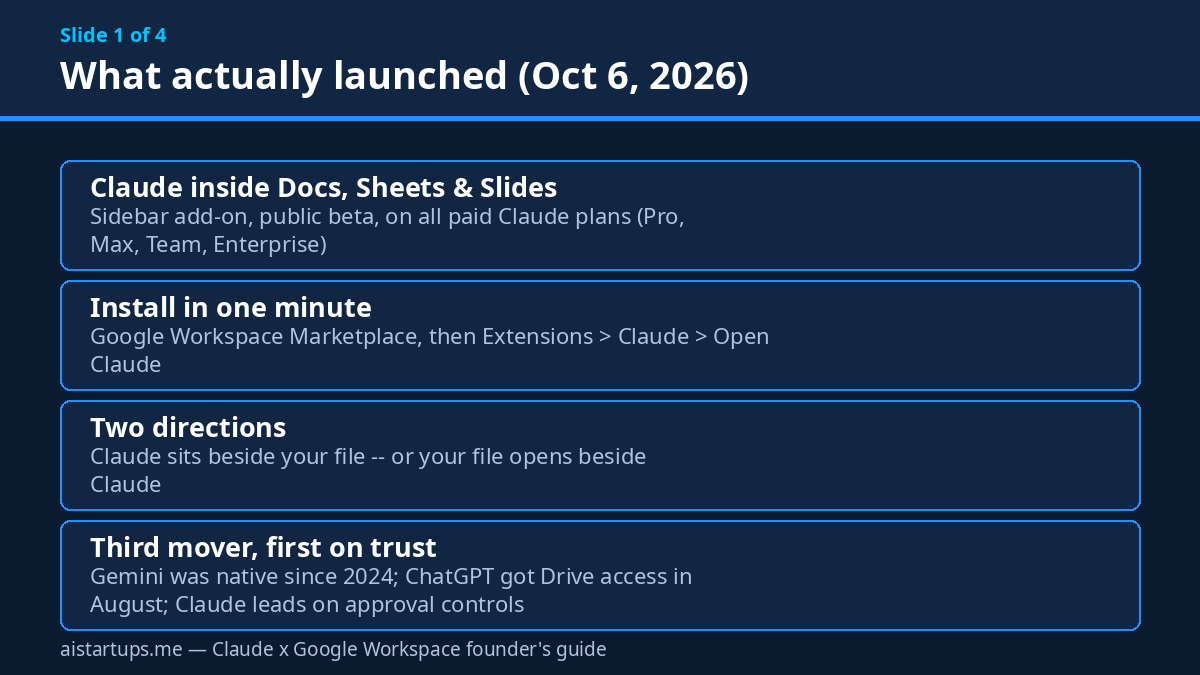
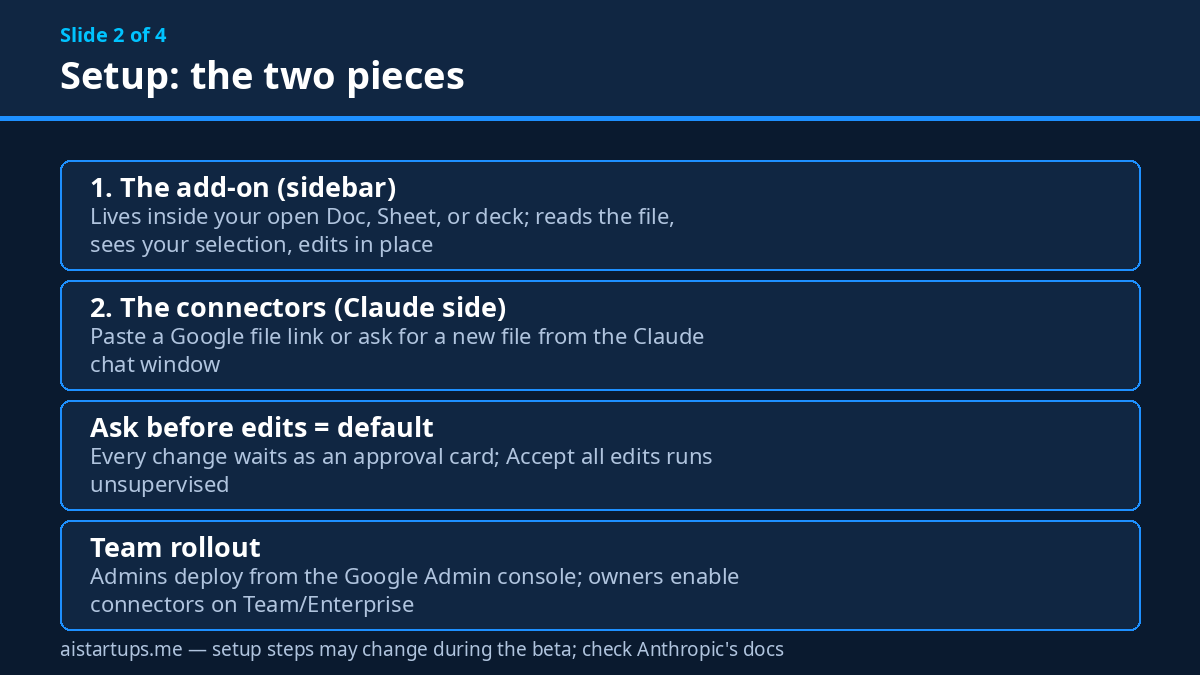
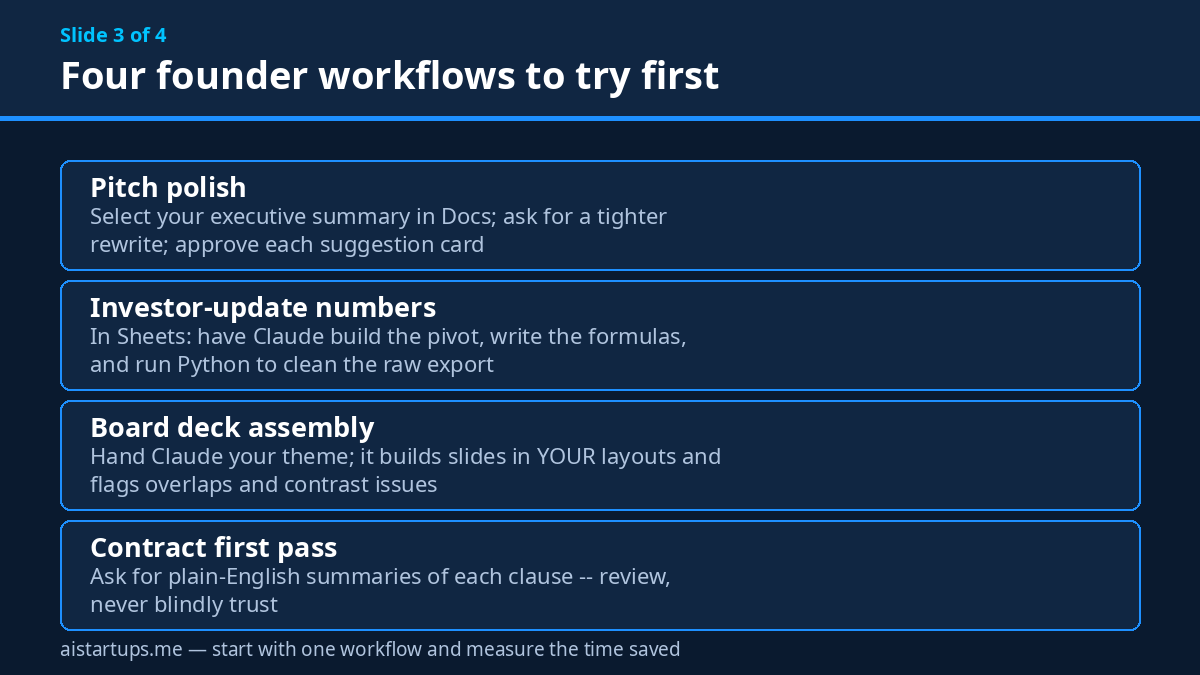
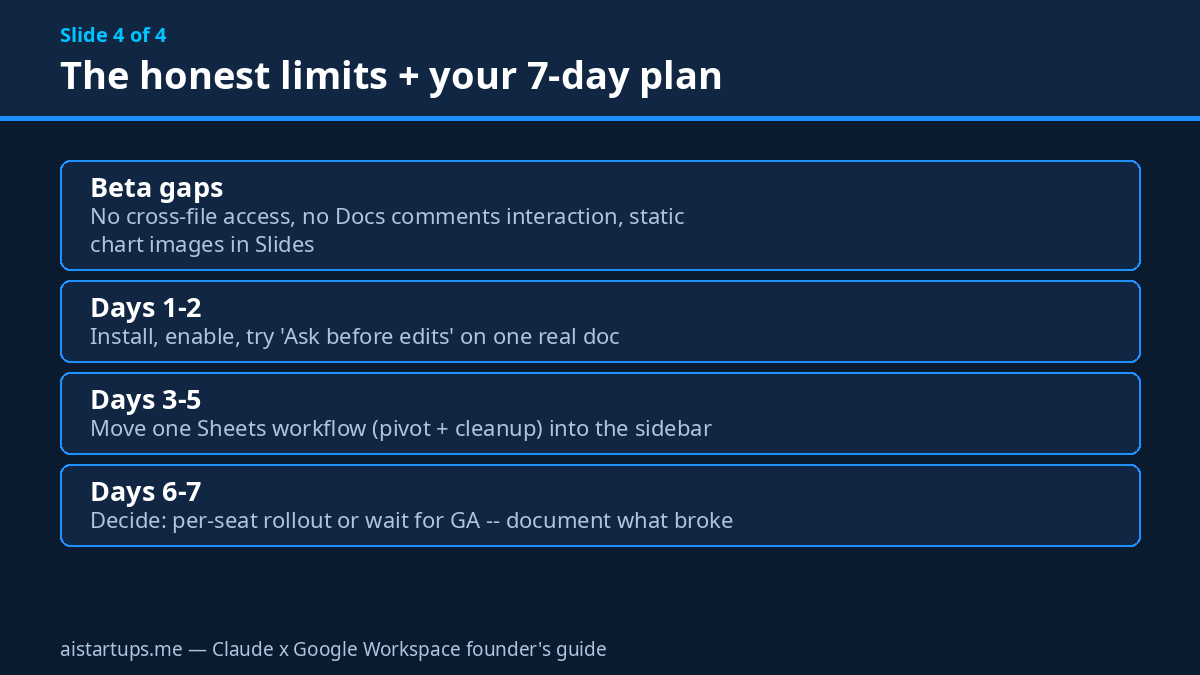
What actually launched (it’s two things, not one)
Here’s the part most headlines gloss over. “Claude for Google Workspace” is actually two separate pieces that work in opposite directions. Understanding the difference matters, because you’ll use them in different moments.
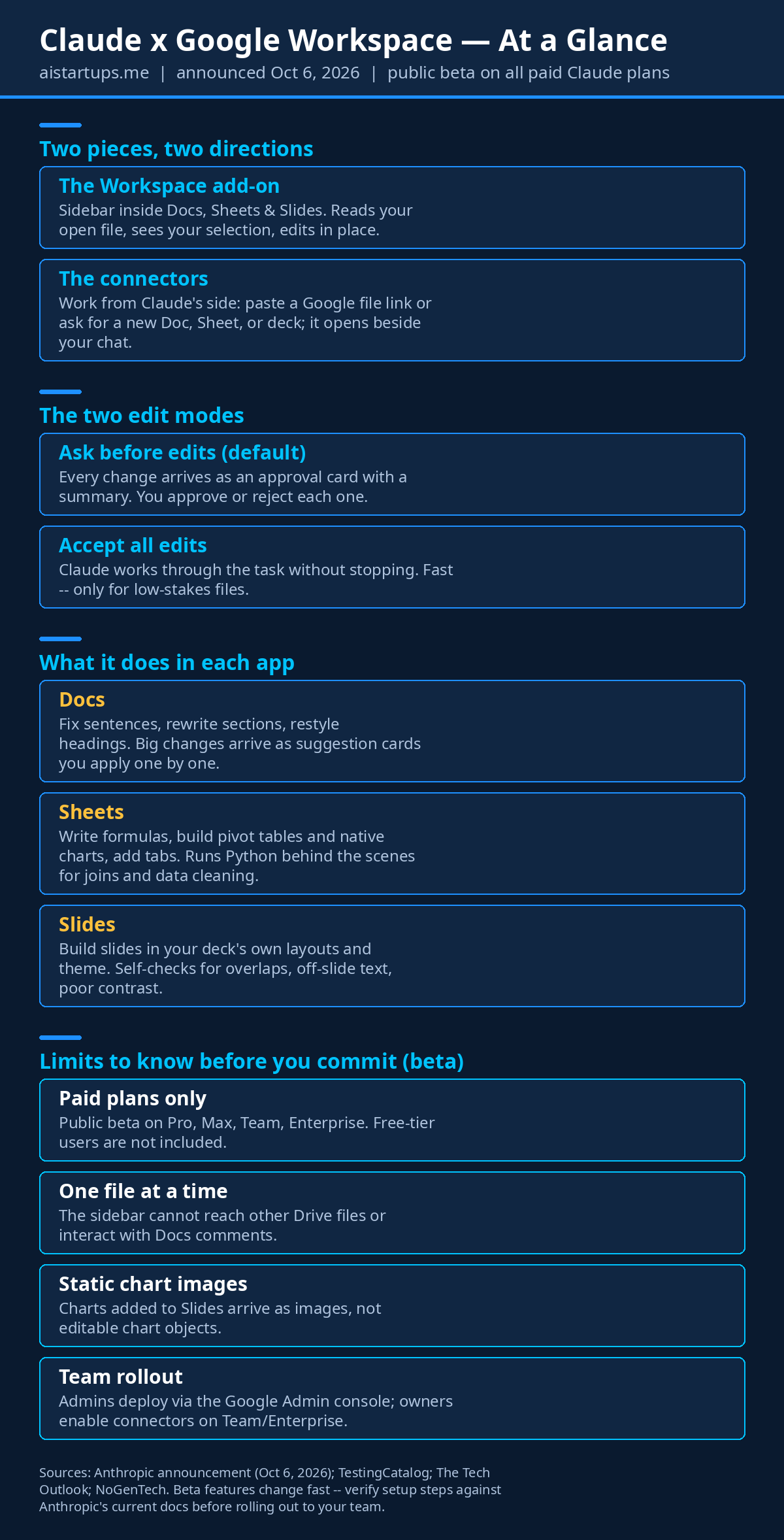
Piece one: the Workspace add-on. This is a sidebar that lives inside your open Doc, Sheet, or deck. You install it from the Google Workspace Marketplace, open a file, and go to Extensions > Claude > Open Claude. The sidebar reads whatever file you have open, sees what you’ve selected, and can edit the file directly — no tab-switching, no copying, no pasting. It’s in public beta on all paid Claude plans (Pro, Max, Team, and Enterprise).
Piece two: the connectors. These go the other direction. From inside the Claude chat window, you can paste a Google file link — or just ask for a new Google Doc, Sheet, or deck — and Claude creates or edits the file, which then opens in a pane beside your conversation. Also beta. On Team and Enterprise plans, an owner has to enable the connectors first.
Anthropic’s own announcement said it plainly:
“Claude now works inside Google Docs, Sheets, and Slides, and those files also open inside Claude.”
Two directions, one idea: your files and your AI assistant finally live in the same room. TestingCatalog’s breakdown has the full play-by-play if you want the minute-by-minute version.
Getting it set up (about five minutes)
Setup is refreshingly boring, which I mean as a compliment. Here’s the whole thing:
- Install the add-on from the Google Workspace Marketplace. One click, like any other add-on.
- Open a Doc, Sheet, or deck, then go to Extensions > Claude > Open Claude. The sidebar appears.
- Sign in with your Claude account. Once you’re in, the sidebar has the same models, connectors, and skills you already use in Claude — nothing new to learn.
- Pick your edit mode. “Ask before edits” is the default: every change arrives as an approval card with a summary, and Claude waits for your go-ahead. “Accept all edits” lets it work through a task without stopping. (More on which to choose below.)
- For teams: admins can deploy the add-on to the whole domain or selected groups from the Google Admin console, and on Team/Enterprise plans an owner enables the Docs, Sheets, and Slides connectors.
That’s it. The Tech Outlook’s setup writeup confirms the same steps, including the admin-deployment path. One thing to note: this is a paid-plans-only feature. If you’re on Claude’s free tier, you don’t get the sidebar. Anthropic hasn’t announced any separate fee for the add-on — it’s included in the paid plans during the beta.
What it does in Google Docs
Docs is where most founders will feel the difference first. Select a sentence and Claude can fix it. Select a heading and it can restyle it, keeping the surrounding formatting intact — which, if you’ve ever watched an AI rewrite nuke your carefully styled doc, you know is the whole ballgame.
For bigger changes, Claude doesn’t just rewrite the text under you. It shows suggested edits as cards in the sidebar, and you approve or dismiss each one individually. That’s a bigger deal than it sounds. The classic failure mode of “AI writing assistants” is that they confidently rewrite your voice into generic mush. The card system turns it into an editing session with a fast junior editor instead of a trust fall.
The workflow that actually matters for founders: select a passage, give one instruction, review the cards. Tighten this paragraph. Turn this list into a table. Rewrite this section for an investor audience. Each one lands as a discrete suggestion you can accept or kill. My advice? Start with your own writing — your About page, your cold emails, your investor updates. You’ll learn its taste (and its blind spots) on low-stakes text before you hand it anything important.
What it does in Google Sheets
Okay, this is the sleeper hit.
In Sheets, the sidebar can write native formulas, build pivot tables, generate built-in charts, and add new tabs. That alone saves a real chunk of time. But the interesting part is what happens with harder jobs — merging tables, cleaning messy exports, deduplicating a CRM dump. For those, Claude can move the data into a Python environment behind the scenes, do the heavy work there, and write the results back into your spreadsheet.
Think about what that means for a two-person startup. Your “data team” is now a sidebar. The monthly revenue report you used to spend a Sunday assembling? Tell Claude what the raw export looks like and what you want: team tabs, a summary chart, flags for anything overspending. It builds the pivot, writes the formulas, runs the cleanup in Python, and writes everything back.
Well — mostly. It’s a beta, and betas have opinions about your data that you should verify. (More on the limits in a minute.) The right posture for Sheets work: let Claude do the tedious 90%, then eyeball the 10% that matters before it goes anywhere official. Pivot totals, formula ranges, the rows it decided were “duplicates” — check those. Every time.
What it does in Google Slides
Slides support is narrower, but honestly, it’s the thoughtful kind of narrow.
Claude builds new slides using your deck’s existing layouts and theme — not some generic AI template that looks like every other pitch deck on the internet. Then it checks its own work: overlapping elements, text running off the slide, color contrast that’s hard to read. If you’ve ever received an AI-generated deck and spent an hour fixing things sliding off the page, you know exactly which failure mode this kills.
One real limitation here, and it’s worth knowing before you plan around it: charts Claude adds to Slides arrive as static images, not editable chart objects. Fine for a board update. Annoying if your co-founder wants to tweak the data labels later. Plan accordingly.
The founder workflow: hand Claude your existing deck and ask for five new slides — market sizing, traction, team, whatever — in your layouts. Review the self-check flags, fix the charts situation, done. The hour you used to spend on deck surgery shrinks to fifteen minutes of review.
The two edit modes — and which one to actually use
This is the single most important setting in the whole product, so let me be blunt about it.
“Ask before edits” (the default) shows every change as an approval card with a summary, and Claude waits for your approval before touching the file. This is the mode you want. For everything. For a long time.
“Accept all edits” removes the checkpoint entirely. Claude works through the task and applies changes without stopping. It’s faster, and it is a loaded gun pointed at your investor deck.
Look, I get the temptation. The whole point of AI is speed, and approval cards feel like they slow you down. But here’s the thing: the cards are the product. An AI that edits your files unsupervised isn’t a productivity tool, it’s a liability with a nice UI. Use “Accept all edits” only for genuinely low-stakes files — a scratch doc, a brainstorm sheet, a draft nobody else will see. For anything with your name on it, the thirty seconds of reviewing cards is the cheapest insurance in your stack.
If you’re rolling this out to a team, make “Ask before edits” the house rule on day one. You can always loosen it later. You can’t un-send the deck Claude confidently rewrote.
Working from Claude’s side: the connectors
The sidebar gets the headlines, but the connectors might be the more interesting piece long-term.
Here’s the scenario: you’re deep in a Claude conversation — working through a pricing model, say — and instead of asking for the output as text you can copy, you just say “put this in a Google Sheet.” The file gets created and opens in a pane beside your chat. Or you paste a link to an existing Doc and tell Claude to rework section three. Same pane, same flow.
Why does this matter? Because it flips the mental model. Your files stop being destinations you export to, and start being working surfaces the AI operates on directly. If you’ve used Claude Sonnet 5.5 for the heavy thinking, the connectors are where that thinking lands without the copy-paste tax. And for the cheap, repetitive legwork — the summaries, the extraction, the formatting — that’s where something like Claude Haiku 5.5 earns its keep inside the same sidebar.
One practical note: on Team and Enterprise plans, the connectors don’t just turn on by themselves — an owner or primary owner has to enable them. If you’re the founder and your team is asking why the connector button does nothing, that’s why. (Ask me how I know.)
The honest limits (it’s a beta — act like it)
I’d be doing you a disservice if I only covered the shiny parts. Here’s what’s actually missing or rough, based on the launch reports:
- One file at a time. The sidebar can’t reach other files in your Drive, and it can’t interact with Docs comments. For collaborative work — the “resolve these 14 comments from my co-founder” workflow — you’re still on your own.
- Static chart images in Slides. Covered above. Editable charts would be the real prize; images are a half-measure.
- Paid plans only. No free-tier access, and no announced timeline for it either.
- It’s a beta. Behaviors will change, sometimes without much warning. The setup steps, the exact capabilities, the rough edges — all of it is subject to revision. Don’t build a company process on a beta feature without a fallback.
Absolute Geeks’ review flags the same gaps, and NoGenTech’s launch report has a good rundown of the enterprise controls. None of these are dealbreakers for trying it. They are dealbreakers for depending on it. There’s a difference, and founders should respect it.
Claude vs Gemini vs ChatGPT in your stack
Context matters here, because Claude is not the first assistant to move into your documents. It’s the third — and that ordering tells you something.
Gemini has been natively built into Google Workspace since June 2024. It has the home-field advantage: deeper integration, no add-on to install, and Google’s own models under the hood. ChatGPT gained Drive file access in August, which made it the second mover. Claude arrives last to the party — but, characteristically, it arrives with the best manners. The approval-card system and the explicit “Ask before edits” default are trust features neither rival led with.
So which one should your startup actually use? The unsatisfying-but-true answer: it depends on which model you already trust with your thinking. If your team lives in Claude for strategy, writing, and analysis — and a lot of startup teams do, which is why this launch matters — then having Claude inside your files beats having a better-integrated assistant you don’t use. The best AI tool is the one whose output you already know how to judge. Switching models to get a slicker sidebar is a bad trade.
That said: if you’re starting from zero and your whole company runs on Google Workspace, Gemini’s native integration is the path of least resistance. No judgment. But if Claude is your brain and Workspace is your hands, this add-on finally connects the two — and that’s worth more than a marginally smoother install flow.
For the broader picture of where AI tools fit in a founder’s stack, my roundup of the 19 AI tools every startup founder should actually use still holds up — this launch just moves Claude higher on that list.
Security notes for the paranoid (good — stay paranoid)
Letting an AI read and edit your company documents is a bigger trust decision than letting it answer questions. A few things worth knowing:
On Enterprise plans, the add-on inherits the serious controls: the Compliance API, customer-managed encryption keys (CMEK), and OpenTelemetry audit export all apply to sidebar activity. That’s the right answer for companies with actual compliance requirements, and it’s one of the quieter reasons this launch is enterprise-shaped.
For everyone else — Pro, Max, Team — the posture I’d recommend is the one you should apply to every cloud AI tool: don’t paste what you wouldn’t email. Customer PII, credentials, unfiled patents, the cap table — keep those out of any AI sidebar until you’ve read the actual data policies yourself. The approval cards protect you from bad edits; they don’t protect you from bad inputs. That’s on you.
And if you’re the admin rolling this out: deploy through the Google Admin console so you control who gets it, and make sure connectors are deliberately enabled rather than accidentally on. Centralized rollout, explicit settings, documented house rules. Boring. Correct.
Five founder workflows to try this week
Enough theory. Here’s what I’d actually do with this in the first seven days:
- The investor update. Draft it in Docs, select the whole thing, ask Claude to tighten it and flag anything an investor would question. Review the cards. Send.
- The metrics sheet. Dump your raw export into Sheets and ask for the monthly summary: pivot by channel, a chart, overspend flags. Check the formulas before it goes in the board pack.
- The pitch deck touch-up. Before your next investor meeting, have Claude review the deck for overlaps, off-slide text, and contrast issues. It’s the cheapest design review you’ll ever get.
- The cold email rewrite. Take your best-performing outreach email, select it in Docs, and ask for three variants tuned to different personas. Approve the ones that still sound like you.
- The contract first pass. Paste in a vendor agreement (nothing with real secrets yet — see above) and ask for a plain-English summary of each clause plus anything unusual. Then hand it to your lawyer anyway. AI reads contracts fast; lawyers read them responsibly.
Notice the pattern: in every one of these, the AI does the first draft and you do the judgment. That’s not a limitation of the tool — that’s the correct division of labor, and it’ll stay that way for a while.
And if you find yourself wanting this kind of AI woven deeper into how your team works — not just a sidebar, but AI built into your docs, your onboarding, your internal tools — that’s exactly the kind of build an AI integration studio like AISquadX does for startups. Sometimes the right move is installing the add-on; sometimes it’s having someone wire the whole workflow properly.
The Bottom Line
Claude for Google Workspace is the rare AI launch that doesn’t ask you to change how you work. It meets you inside the tools you already live in — Docs, Sheets, Slides — and quietly removes the copy-paste tax that’s been eating your afternoons for years.
It’s a beta, and it acts like one: one file at a time, no Drive-wide reach, static chart images, paid plans only. Don’t build company processes on it yet. But for individual founders and small teams already living in Claude? Install the add-on, leave “Ask before edits” on, and give it one real workflow this week.
The AI wars stopped being about which model is smartest a while ago. They’re about which assistant shows up where the work happens. As of October 6, Claude finally shows up in the three apps where most startups do most of their work. About time.
Frequently asked questions
Is Claude for Google Workspace free?
No. It’s in public beta on paid Claude plans only — Pro, Max, Team, and Enterprise. Free-tier users don’t get the sidebar, and Anthropic hasn’t announced a timeline for that changing. There’s no separate fee for the add-on itself during the beta; it’s included in the paid plans.
Does Anthropic train on my company’s documents?
Anthropic applies its enterprise controls — including the Compliance API, customer-managed encryption keys, and audit export — to sidebar activity on Enterprise plans. For other plans, the honest answer is: read the current data policy yourself before connecting anything sensitive, and as a rule don’t feed any AI tool what you wouldn’t email. Policies change; your caution shouldn’t depend on them.
Can the sidebar see my whole Google Drive?
No — and that’s both a limitation and a comfort. The add-on reads the file you have open and sees what you’ve selected; it can’t reach other Drive files or interact with Docs comments. If you need cross-file work, the connectors let you pull specific files into Claude by link instead.
How is this different from Gemini in Workspace?
Gemini has been natively integrated since June 2024, so it’s smoother to set up and deeper in places. Claude’s differentiator is the trust model: the “Ask before edits” default with per-change approval cards, plus the same models, connectors, and skills you already use in Claude. Pick the assistant whose output you trust most — the sidebar is secondary.
Should my startup roll this out team-wide now or wait?
Try it yourself first — one founder, one workflow, one week, “Ask before edits” on. If it earns its keep, roll it out via the Google Admin console with connectors deliberately enabled and a house rule about approval mode. If your team doesn’t already live in Claude, wait for general availability; the beta’s rough edges aren’t worth a team-wide process change.